
 11:08 AM
 Unknown

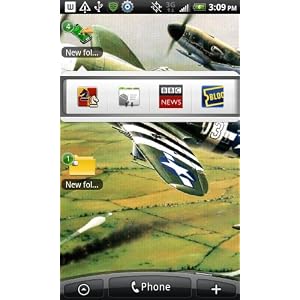
Serious Widgets for the Serious Android User
Application Folder helps make folders accessible from your home screen using instantly recognizable icons. Set up and customize folders, stuff them full of apps, bookmarks, and contacts, and place them as widgets anywhere on your home screen. Now those frequently used apps, bookmarks, and contacts are right there for you to access immediately.The King of Folders
Let's say you want to be able to e-mail certain contacts quickly. First, access Application Folder through your Widgets menu. Next, create a folder with the e-mail symbol, or any of Application Folder's dozens of attractive icons, such as an airplane, bus, movie reel, pen, paint pallet, etc. Now choose the contacts you want to be in this new folder. Select Menu, then select Refresh Icon, and that folder-widget is now on your screen. Tapping on the widget will bring up your chosen contacts, who now can be e-mailed with one tap. You can set these contacts up to be called or sent a text with one tap as well.We Want Widgets
Create a folder-widget for family e-mails. Create another folder-widget for your favorite games. With Application Folder, there's no more hunting down a function or link through various menu trees. The app, contact, bookmark, or song you want access to immediately is right there on your home screen. You can also customize the size of the widget.Please note that Application Folder must be launched through the Widgets menu. After you launch the widget, Application Folder scans and organizes your applications, contacts, and bookmarks. Application Folder's main menu is also accessible from any of the widgets you've set up.


0 comments:
Post a Comment